

UPS Monitor Driver Install
Most all storage media will not survive power cycle events across time. It is very important for a myServer control system to be on a UPS for proper graceful shutdown when there is an AC line power outage. Read More. Plugging the system into a UPS is a great first step. But what if the power outage extends beyond the physical storage capacity of the backup battery? It is important to automate a myServer graceful shutdown on all systems. myServer can also be configured to shut down other devices (TVs, AV receivers, video matrix, etc.) This ability greatly reduces the potential for very expensive equipment failures.
Note that Power cycle failures are not covered under Allonis's myServer controller warranty.
Installation:
NOTE: This guide assumes you are using a Linux based myServer installation. While you can install on Windows it is not supported.
NOTE: Do not skip any steps! They must be executed in the order shown below.
Step 1: Make sure your UPS is connected to the server via USB on one of the available ports. UPS communication is low bandwidth so plugging the USB cable into one of the open black USP ports is best.
Step 2: Open a terminal on your myServer controller and issue the following command.
lsusb
You want to make sure the operating system sees your UPS as a connected device. If you have an attached UPS the response from lsusb should look something like this.
Bus 001 Device 001: ID 1d6b:0002 Linux Foundation 2.0 root hub
Bus 001 Device 044: ID 1a86:55d4 QinHeng Electronics 800 Z-Wave Stick
Bus 001 Device 045: ID 0764:0601 Cyber Power System, Inc. PR1500LCDRT2U UPS <<<< THIS IS THE UPS SIGNATURE
Bus 002 Device 001: ID 1d6b:0003 Linux Foundation 3.0 root hub
Bus 003 Device 001: ID 1d6b:0002 Linux Foundation 2.0 root hub
Bus 003 Device 002: ID 046d:c52b Logitech, Inc. Unifying Receiver
Bus 004 Device 001: ID 1d6b:0003 Linux Foundation 3.0 root hub
If lsusb does not report any UPS attached check you USB cable and connections. You cannot proceed beyond this point until you see a connected UPS.
Step 3: From Dashboard / Software Updates install the UPSMonitor driver.
Step 4: Open the UPS Monitor driver in Dashboard.
You now have to install the NUT utilities. If you are using one of the recommended Cyber Power UPS devices we've made the process really easy.
If you are not using a Cyber Power UPS then jump down to the manual install section and perform a manual install of NUT.
From the UPSMonitor command builder select the InstallNut command and execute it.
This will execute the deploy-nut.sh script located in the myServer/data/nut folder.
This script will
- Install Nut, Nut-Server and Nut-Client Linux packages
- Create all the associated Nut configuration files
- Install and start the Nut background services
- Configure the Nut Monitor to gracefully shut down the server what the UPS battery reaches 5% charge. This happens at the opeating system level and does not require myServer to be running.
- Install the nut-healthcheck.sh script and create a cron job to periodically check the health of the UPS and report back status to the server as system toast messages.
Step 5: From the UPS Monitor / Command Builder run the Add Host command.
For example; UPSMonitor|AddHost~UPS Host~10.10.1.4~3493~Unknown
Change 10.10.1.4 to yout myServer IP address.
Close the command builder and after a few seconds you should see your UPS show up as a new device in the grid.
You should see something like the following:
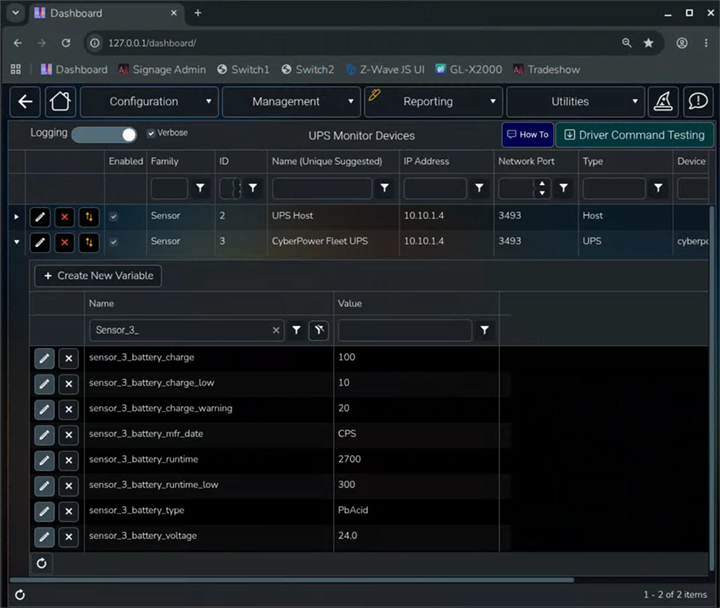
Then if you go back into the command builder and run the SelectDevice command on the new UPS you should see this.
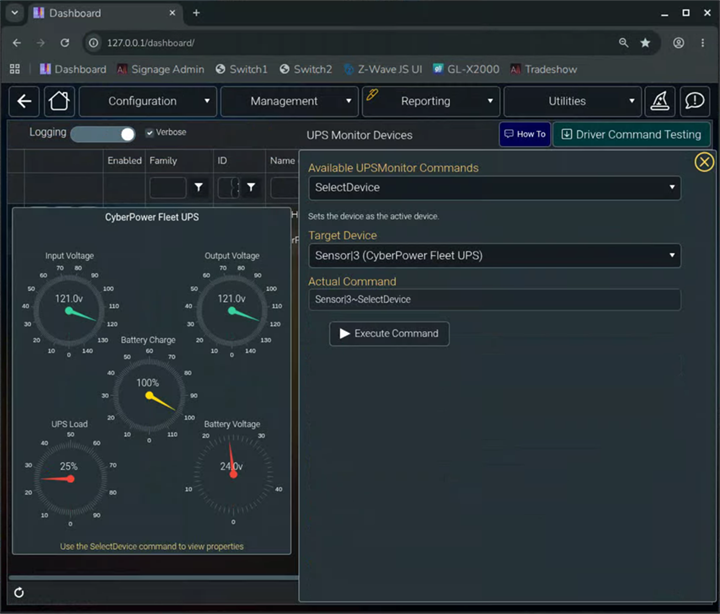
If the gauges are working you're done.
Manual Install:
If you do not have one of the fully supported Cyber Power UPS then you'll have to perform a manual insall of Nut on your server. These are the following steps:
Do everything from a terminal window
Step 1: Identify the UPS
lsusb
Bus 001 Device 001: ID 1d6b:0002 Linux Foundation 2.0 root hub
Bus 001 Device 044: ID 1a86:55d4 QinHeng Electronics 800 Z-Wave Stick
Bus 001 Device 045: ID 0764:0601 Cyber Power System, Inc. PR1500LCDRT2U UPS <<<< NOTE THE UPS NAME
Bus 002 Device 001: ID 1d6b:0003 Linux Foundation 3.0 root hub
Bus 003 Device 001: ID 1d6b:0002 Linux Foundation 2.0 root hub
Bus 003 Device 002: ID 046d:c52b Logitech, Inc. Unifying Receiver
Bus 004 Device 001: ID 1d6b:0003 Linux Foundation 3.0 root hub
Step 2: Install Nut packages
sudo apt update && sudo apt upgrade -y
sudo apt install nut nut-client nut-server -y
Step 3: Use the nut-scanner to identify your UPS
sudo nut-scanner -U
If it finds a UPS then
Step 4: Edit the ups.conf file
sudo nano /etc/nut/ups.conf
Append the output of the results of the nut-scanner from the last step.
[cyberpower]
driver = usbhid-ups
port = auto
desc = "CyberPower PR1500LCDRT2U" <<<< REPLCE WITH UPS DEVICE DISCOVERED ABOVE
ignorelb
override.battery.charge.low = 5 <<<< THIS IS THE BATTERY PERCENTAGE WHEN THE SYSTEM GRACEFULLY SHUTS DOWN
save the edits.
Step 5: Edit the ups deamon config
sudo nano /etc/nut/upsd.conf
LISTEN 0.0.0.0 3493
save the edits
Step 6: Define the nut users
sudo nano /etc/nut/upsd.users
[admin]
password = allonis
actions = SET
instcmds = ALL
[upsmon_client]
password = allonis
upsmon secondary
Save the edits.
Step 7: Edit the UPS Monitor config file. Append
sudo nano /etc/nut/upsmon.conf
MONITOR cyberpower@localhost 1 admin allonis primary
Save the edits
Step 8: Edit the primary Nut config. Change MODE
sudo nano /etc/nut/nut.conf
MODE=netserver find mode=noe
Save your Edits
Step 9: UDEV Rules. Change idVendor to the Vendor value from the first manual step above.
sudo nano /etc/udev/rules.d/99-nut-ups.rules
SUBSYSTEM=="usb", ATTR{idVendor}=="0764", BUS=="usb", MODE="0660", GROUP="nut"
Save the edits then reload the rules
sudo udevadm control --reload-rules
sudo udevadm trigger
Step 10: Enable the background services
sudo systemctl enable nut-driver@cyberpower
sudo systemctl restart nut-driver@cyberpower
sudo systemctl restart nut-server
sudo systemctl daemon-reload
sudo systemctl enable nut-server nut-monitor
sudo systemctl restart nut-server nut-monitor
At this point you should be done and Nut should be running.
Step 11: Check by running the following command.
upsc cyberpower@localhost
If you see the following everything is installed and working. Now you can install the UPSMonitor and add the Host as outlined above.
Init SSL without certificate database
battery.charge: 100
battery.charge.low: 10
battery.charge.warning: 20
battery.mfr.date: CPS
battery.runtime: 3030
battery.runtime.low: 300
battery.type: PbAcid
battery.voltage: 24.0
battery.voltage.nominal: 24
device.mfr: CPS
device.model: OR1000PFCRT2U
device.type: ups
driver.debug: 0
driver.flag.allow_killpower: 0
driver.flag.ignorelb: enabled
driver.name: usbhid-ups
driver.parameter.override.battery.charge.low: 10
driver.parameter.pollfreq: 30
driver.parameter.pollinterval: 2
driver.parameter.port: auto
driver.parameter.synchronous: auto
driver.state: quiet
driver.version: 2.8.1
driver.version.data: CyberPower HID 0.8
driver.version.internal: 0.52
driver.version.usb: libusb-1.0.28 (API: 0x100010a)
input.voltage: 120.0
input.voltage.nominal: 120
output.voltage: 120.0
ups.beeper.status: enabled
ups.delay.shutdown: 20
ups.delay.start: 30
ups.load: 30
ups.mfr: CPS
ups.model: OR1000PFCRT2U
ups.productid: 0601
ups.realpower.nominal: 700
ups.status: OL
ups.test.result: No test initiated
ups.timer.shutdown: -60
ups.timer.start: -60
ups.vendorid: 0764